

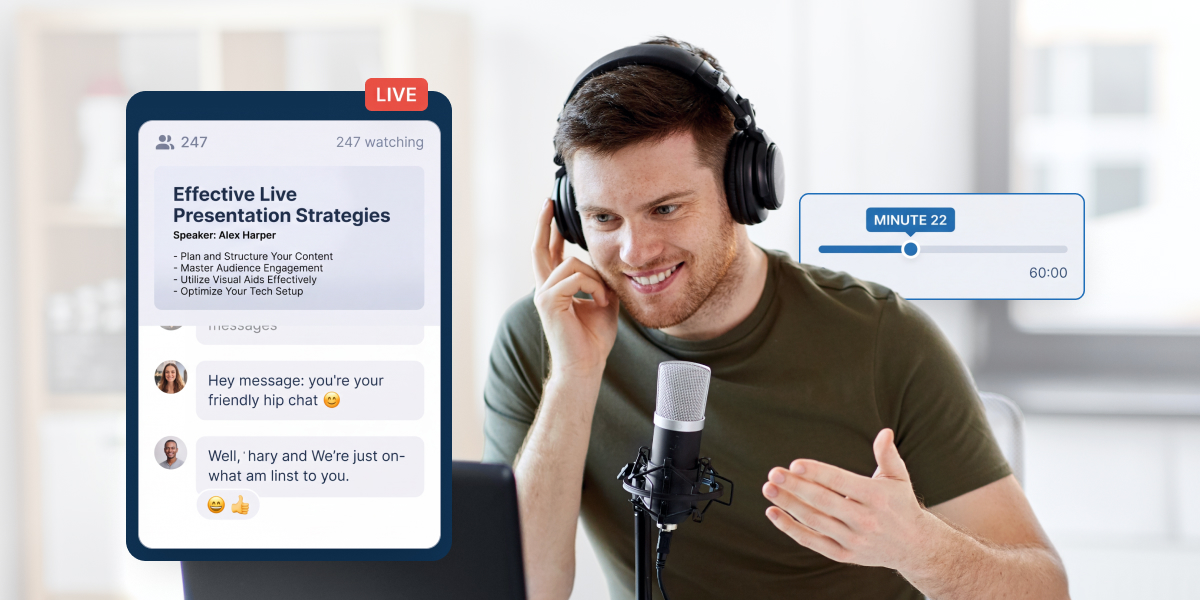
Your slides are done, you’ve rehearsed twice, and then the webinar starts and you’re talking to a lens.
No nodding heads. No laughs. Just your own face in the corner of the screen and a chat that scrolls faster than you can read it. And somewhere around minute 22, people start quietly leaving, and you can’t see a single one of them go.
That’s what makes a webinar presentation so different from speaking in a room. Contrast’s data shows viewers start dropping off around minute 22, and only 37% are still there at the end of a 60-minute webinar.
Here’s the short version. Strong webinar presentation delivery comes down to seven habits: set up your microphone and camera properly, talk to the lens instead of the screen, slow down and pause more than feels natural, present from cue notes rather than a script, change the pace before minute 22, let a moderator handle the chat, and rehearse in the live room before you go live.
In this guide you’ll get the specific techniques for each one, including what to do when something breaks halfway through.
Because your slides get people through the first minute. The way you present them decides who’s still there at the offer.
Table of contents
- Why is a webinar presentation harder than presenting in a room?
- How should you set up your webcam, light and sound?
- How do you connect with an audience you can’t see?
- How fast should you speak in a webinar presentation?
- How do you use notes without reading them?
- How do you present with your slides?
- How do you keep energy up past minute 22?
- How do you handle the chat and the Q&A session?
- How do you deliver the offer without changing your voice?
- What should you do when something breaks live?
- How should you rehearse a webinar presentation?
- What would you do in these six live moments?
- Common questions
Why is a webinar presentation harder than presenting in a room?
Because you lose the feedback. In a room, you see confusion, boredom and interest as they happen, and you adjust without thinking. On camera, you get none of that.
So you have to build the feedback in. A poll tells you what the room knows. A question in the chat tells you who’s still paying attention. And a planned change of pace stops attention from fading in silence.
The other difference is competition. Your audience is one tab away from their inbox, and on live webinars, nobody announces that they’re leaving.
How should you set up your webcam, light and sound?
Sound first, then light, then camera. People will forgive slightly soft video. They won’t stay for audio that’s hard to understand.
Your setup, in priority order
Microphone
Use a dedicated USB or headset microphone instead of your laptop’s built-in one, and keep it the same distance from your mouth throughout.
Room
Pick the quietest room you have, close the door, and silence notifications on every device near you.
Light
Face a window or put a lamp behind your webcam, so the light falls on your face rather than behind you.
Camera
Raise it to eye level, so you’re looking straight at people instead of down at them. A stack of books works fine.
Background
Keep it plain and tidy. A busy background competes with your slides.
Then test everything in your webinar software, not in a separate app, because settings that work on a video call don’t always carry over. These techniques work on any webinar platform, whether you present on WebinarJam, Livestorm or Zoom.
How do you connect with an audience you can’t see?
Look at the lens, not the screen. It’s natural to watch your own face or your slides, but to viewers it reads as looking away. When you look into the webcam, every person watching feels like you’re talking to them.
A few habits make it easier:
- Stick a small note with a smiley face next to the lens as a reminder.
- Keep your notes and the chat window as close to the camera as you can, so glancing at them barely moves your eyes.
- Use names from the chat. “Good question, Priya” turns a broadcast into a conversation.
- Talk to one person. Picture the single viewer who’d benefit most from your topic, and present to them.
You’ll still look down sometimes, and that’s fine. The goal is that your default is the lens.
How fast should you speak in a webinar presentation?
Slower than feels natural, with more pauses than feels comfortable. Nerves speed you up, and on a webinar there’s no audience reaction to slow you down again.
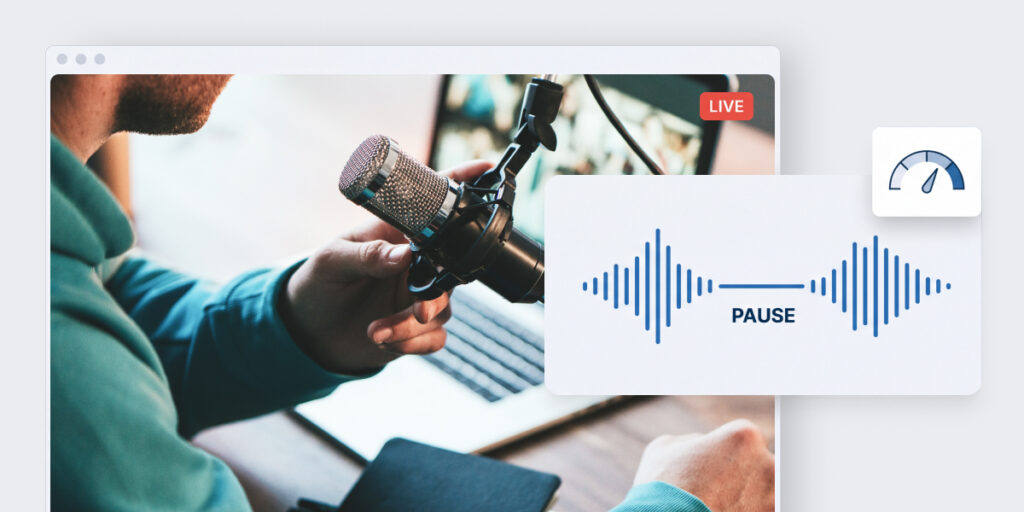
Pause after every important point. Two seconds of silence feels long to you, but it gives viewers time to absorb what you said and look back at the slide.
Change your pace and pitch on purpose. A flat voice is the fastest way to lose a remote audience, because your voice is doing the work your body language would do in a room. Slow down for the key idea, speed up a little for the story, and drop your voice for the point you want remembered.
And watch the fillers. “Um” and “so” are easy to miss live, but they’re hard to sit through on a webinar recording. Replace them with a pause.
How do you use notes without reading them?
Use cue words, not sentences. A script you read word for word sounds read, and it pulls your eyes off the lens.
Write three or four words per slide: the point, the example and the question you’ll ask. Put them in your presenter notes or on a sheet beside your webcam. If you need exact wording for the hardest parts, like your opening and your offer, write only those out and practice them until you barely need the page. Our webinar script templates give you word-for-word lines for exactly those moments.
Mark your interaction cues in the notes too, such as “launch poll” or “hand to moderator,” so you and your moderator know exactly when each one happens.
How do you present with your slides?
Treat your webinar presentation slides as the backdrop and yourself as the presentation. Say the point first, then let the slide prove it. If you read the slide aloud, people read faster than you speak and stop listening.
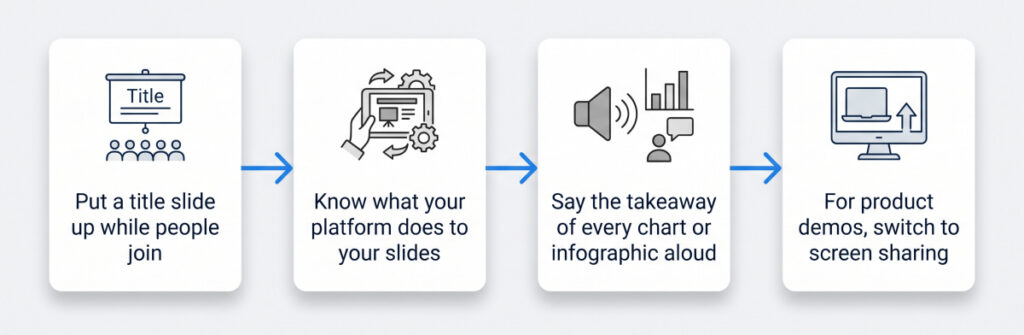
A few delivery details matter once the slides are live:
- Put a title slide up while people join, with the webinar title and the start time, so early arrivals know they’re in the right place. If your landing page promised a specific outcome, put that on the title slide too.
- Know what your platform does to your slides. WebinarJam accepts a PowerPoint presentation, a Keynote file or a PDF up to 80 MB, and Google Slides decks need to be downloaded first. Uploaded slides display as static images, so animations and builds in your PowerPoint slides won’t play. Present as if every slide appears all at once.
- Say the takeaway of every chart or infographic aloud. On a small screen, many viewers can’t read the detail, and infographics that work in print often turn to mush on a webcam feed.
- For product demos, switch to screen sharing, but know that WebinarJam’s screen sharing doesn’t carry audio from your computer. If a clip needs sound, use video injection instead.
If you’re still building the webinar slide deck, webinar presentation templates in Canva or PowerPoint can speed up the design, but no template fixes delivery. Our guide to creating webinar slides covers the design side, from layouts to readable text.
How do you keep energy up past minute 22?
Change something before attention dips. Viewers start leaving around minute 22, so plan a pattern break just before it: a poll, a quick quiz, a short demo, a story, or a switch from your presentation slides to your face on camera.
Polls work especially well because they turn listeners into participants. WebinarJam lets you launch polls during the live session, and Univid found that webinars with the most interaction converted 69% on their calls to action, against under 20% for the quietest. That’s a correlation, not proof, but it’s a strong reason to plan your interactive elements instead of improvising them.
Your voice is a pattern break too. Lift your energy at the start of each new section, and tell people what’s coming next: “In the next five minutes, I’ll show you the exact template.” A clear promise of what’s ahead is often enough to stop someone clicking away.
For educational webinars and training sessions, give people a small task every 10 to 15 minutes, like filling in one line of a worksheet. Audience engagement holds better when people are doing something, not just watching.
How do you handle the chat and the Q&A session?
Hand them to a moderator if you can. Presenting, reading the chat and answering questions at the same time splits your attention three ways, and it shows.
A good moderator:
What a good moderator does
Welcomes people
Greets people as they arrive and answers logistics questions, like whether there’s a replay.
Collects questions
Gathers the best questions and passes them to you in batches.
Launches on cue
Launches polls and offers when you give the signal.
Flags problems
Spots technical problems before you’d notice them.
This matters even more for virtual events with several speakers, where someone has to manage the handovers. Platforms handle moderator roles differently, so check how yours works before the day.
If you’re presenting alone, don’t read every message as it arrives. Tell people when you’ll answer questions, then do it in batches at natural breaks. When you take a question, read it aloud first, so everyone knows what you’re answering.
Save the main Q&A session for after your offer, so the questions you answer are the ones standing between people and the next step. Univid found that 49% of webinars run a Q&A, which means half are skipping the moment where doubts get resolved.
How do you deliver the offer without changing your voice?
Keep the same voice you taught in. The moment your tone shifts into sales mode, people feel it, and some leave.
Say what the offer is, who it’s for, what it costs and how to get it, in plain language. Show the call to action on screen at the moment you mention it, then pause. Silence after the price feels uncomfortable, but it gives people room to decide.
Say the CTA once clearly, and once more before you move into questions. Don’t apologize for making an offer. If you’ve taught something useful, the offer is just the next step. Our webinar CTA guide has examples of button text that people actually click.
What should you do when something breaks live?
Say what’s happening, keep talking, and switch to your backup. Viewers forgive technical problems far faster than awkward silence.
Prepare these before every webinar:
Your live backup kit
A backup screenshot
Of anything you’ll demo, so you can still explain it if the demo stalls.
A second device
Logged in as an attendee, so you can see exactly what viewers see.
A fallback line
Like “While that loads, here’s the part most people get wrong,” so you’re never stuck in silence.
A moderator
Who can post updates in the chat while you fix things.
If your audio or video drops completely, rejoin, apologize once, recap the last point in a sentence and carry on. And if it goes badly wrong, remember the webinar recording: you can send the full session to everyone afterward.
How should you rehearse a webinar presentation?
Out loud, in the webinar software you’ll use live, with a timer running. Rehearsing in your head hides the problems that only appear when you speak, like a slide that takes nine minutes to explain.
Do at least one full run-through and record it. Watch it back and look for three things: where your energy drops, where you look away from the lens, and where you rush.
Then test the room itself. WebinarJam recommends two kinds of test: a soft test to check your controls, and a cloned live test to check the full attendee experience, including the replay. Have a colleague join as an attendee to check the smallest text on your slides and how the offer appears. Our checklist of webinar conversion mistakes to catch in rehearsal covers the rest of the technical checks.
What would you do in these six live moments?
Test yourself on the moments every presenter runs into. Pick your move for each one, then see what works and why.
What would you do?
Six moments every presenter runs into. Pick your move for each one, then see what works and why.
Moment 1 of 6
Your live demo freezes at minute 18.
Right. That’s the best move.
Silence is worse than the glitch. Viewers forgive a broken demo far faster than dead air, and the screenshot keeps the lesson intact.
Not quite. The best move is B.
Silence is worse than the glitch. Viewers forgive a broken demo far faster than dead air, and the screenshot keeps the lesson intact.
Moment 2 of 6
The chat goes silent right after your poll.
Right. That’s the best move.
“Any questions?” is easy to ignore. A specific prompt tied to their own answer gives people something easy to type.
Not quite. The best move is A.
“Any questions?” is easy to ignore. A specific prompt tied to their own answer gives people something easy to type.
Moment 3 of 6
It’s minute 21 and you’re 10 slides behind.
Right. That’s the best move.
Viewers start leaving around minute 22, so rushing everything loses them anyway. Cut the extra example, never the offer.
Not quite. The best move is C.
Viewers start leaving around minute 22, so rushing everything loses them anyway. Cut the extra example, never the offer.
Moment 4 of 6
Someone asks a hard question in the chat while you’re mid-point.
Right. That’s the best move.
Answering mid-point breaks the flow for everyone, and ignoring it loses that person. Naming it and parking it keeps both.
Not quite. The best move is B.
Answering mid-point breaks the flow for everyone, and ignoring it loses that person. Naming it and parking it keeps both.
Moment 5 of 6
You reach the offer and feel your voice speeding up.
Right. That’s the best move.
Rushing and apologizing both signal doubt. The same calm voice you taught in, plus a pause after the price, gives people room to decide.
Not quite. The best move is A.
Rushing and apologizing both signal doubt. The same calm voice you taught in, plus a pause after the price, gives people room to decide.
Moment 6 of 6
Your audio drops for 30 seconds.
Right. That’s the best move.
One apology and a one-sentence recap get everyone back on track without wasting the time of people who heard it the first time.
Not quite. The best move is C.
One apology and a one-sentence recap get everyone back on track without wasting the time of people who heard it the first time.
Your score so far: of 6
Common questions
How do I keep attendees engaged?
Give them something to do every few minutes and something to look forward to. Ask a question in the chat early, run a poll before attention dips around minute 22, and tell people what’s coming next. Interactive elements work best as reasons to stay, not as decoration.
How do I get over nerves on camera?
Rehearse your first two minutes until you can say them without notes. Nerves usually hit hardest at the start, and a smooth opening steadies the rest. Before you go live, stand up, take a few slow breaths and warm up your voice by reading one paragraph aloud.
Do pre-recorded webinars need the same delivery?
Yes, and arguably more, because there’s no live chat to rescue a flat moment. Look at the lens, keep your energy up as if people were watching live, and record in short sections. Pre-recorded webinars let you redo a rough section, so use that.
Sources
- Contrast, Webinar Statistics 2026
- Univid, Webinar Insights 2026
- WebinarJam Help Center: slide presentations, screen sharing and testing your webinar