

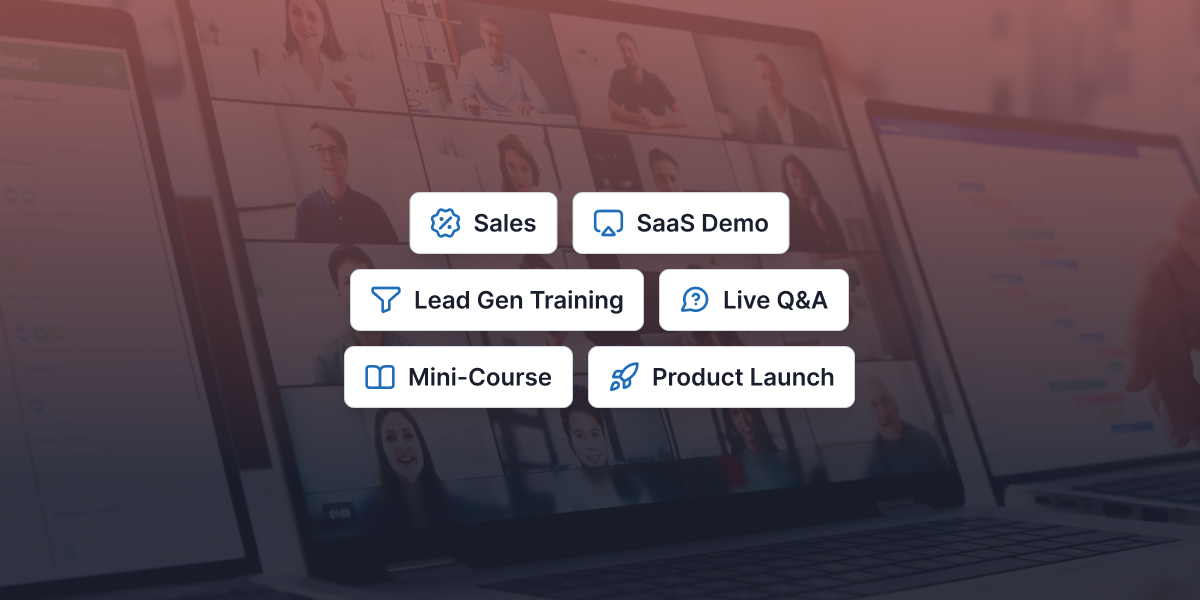
Different webinar examples convert for different reasons.
A sales webinar earns the pitch. A SaaS demo reduces uncertainty. A lead gen training gives away clarity. A live Q&A handles objections that a landing page cannot. A mini-course creates progress. A product launch helps the right people decide whether the new thing matters to them.
The categories overlap in practice. A product launch may include a SaaS demo. A lead gen training may end with a sales-style offer. A mini-course may use live Q&A to handle objections before enrollment.
The point is not to label the webinar perfectly. The point is to choose the slide sequence that matches the job.
Slide order is not cosmetic. Put the offer too early and the webinar feels like a pitch. Put Q&A too late and objections go cold. Put the demo before the problem and the product becomes a feature tour. The structure is the strategy.
WebinarJam fits these live formats when the event needs registration, live presentation, audience engagement, polls, Q&A, handouts, offers, replays, and post-webinar review.
1. Sales Webinar Example
Best for: courses, coaching programs, consulting, premium services, and offers that need explanation before purchase.
A sales webinar earns the pitch. The deck has to make the offer feel like the next step, not a hard turn.
Slide Cluster 1: Promise, Audience Fit, and Stakes
Start by naming who the webinar is for and what decision it will help them make.
This cluster should answer:
- “Is this for me?”
- “What will I understand by the end?”
- “Why should I stay live?”
Do not open with your bio, product, or offer. That makes the webinar feel presenter-centered before the audience has a reason to care.
Slide Cluster 2: Problem, Cost, and False Fixes
Next, show the problem clearly. Name what the audience has tried, why it has not worked, and what keeps the issue in place.
This section creates demand for a better method. If it comes too late, the webinar feels like generic teaching. If it is too dramatic, it can feel manipulative.
The goal is tension, not fear.
Slide Cluster 3: Framework or Method
Teach the mechanism behind your solution. This is where the webinar earns trust.
Do not give a random list of tips. Use a named framework, sequence, or decision model. The audience should leave this section thinking, “I can see why my old approach was not enough.”
Slide Cluster 4: Offer Bridge
The bridge explains why the next step exists.
This is the slide cluster many sales webinars miss. They teach for 35 minutes, then suddenly shift into “Here is what I sell.” A better bridge names the implementation gap:
“You now have the framework. The harder part is applying it to your situation without guessing.”
Slide Cluster 5: Offer, Fit, Objections, and CTA
Present the offer only after the audience understands the problem, method, and implementation gap.
If you use WebinarJam, this is where an in-room offer can support the moment with offer details and a button linking to the next step. The offer still needs a clear value proposition, truthful urgency if used, and a logical connection to the teaching.
Trap: Teaching for too long without building a bridge. The audience leaves informed but not moved.
Pro-tip: Add a “who this is not for” slide before the offer. It lowers pressure and makes the recommendation more credible.
2. SaaS Demo Webinar Example
Best for: SaaS companies, product marketers, sales teams, onboarding teams, and products with workflow complexity.
A SaaS demo goes wrong the moment the dashboard becomes the hero. The buyer’s workflow should lead; the product should follow.
Slide Cluster 1: Buyer Problem and Use Case
Start with the workflow the prospect wants to improve.
Do not begin with “Here is our platform.” If the demo starts inside the product too soon, attendees judge features before they understand the problem those features are meant to solve.
Slide Cluster 2: Current Workflow and Friction
Show what breaks in the current process.
This section gives the demo context. It also helps mixed audiences stay aligned. A buyer, operator, and technical stakeholder may care about different things, but they can usually agree on the workflow pain.
Slide Cluster 3: Product Walkthrough
Now show the product.
Move through a real sequence: setup, action, result, and next decision. Resist the urge to show everything. A focused demo is more persuasive than a complete tour.
Slide Cluster 4: Live Questions and Stakeholder Concerns
Use Q&A to handle friction while the product is still fresh in the room.
This is where a live demo can outperform a static video: attendees can ask about fit, workflow, implementation, or edge cases in real time.
Slide Cluster 5: Next Step
Match the CTA to buying readiness.
A high-intent room may need a sales conversation, trial, or technical review. A lower-intent room may need a guide, comparison checklist, or second demo.
Trap: Showing every feature because the team worked hard to build them.
Pro-tip: Add a “what we will not cover today” slide. It keeps the demo focused and gives the moderator a clean way to park off-topic questions.
3. Lead Gen Training Webinar Example
Best for: list building, demand generation, audience education, and problem-aware prospects.
A lead gen training should give away clarity, not the whole solution.
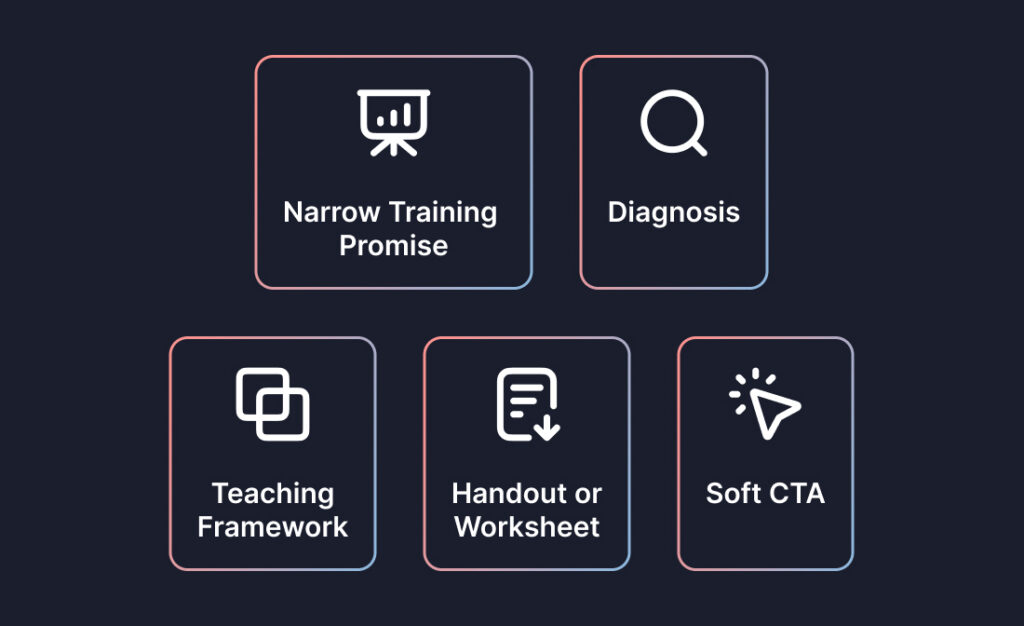
Slide Cluster 1: Narrow Training Promise
Lead gen webinars work best when the promise is specific.
“Improve your webinar funnel” is broad. “Find the weak point between registration and attendance” gives the audience a concrete reason to attend.
Slide Cluster 2: Diagnosis
Help attendees identify where they are stuck.
This is a strong place to use a poll. WebinarJam supports polls and quizzes that can be launched during the live session, and poll results can help hosts understand attendee priorities.
The key is to use the answer. A poll that does not change anything feels decorative.
Slide Cluster 3: Teaching Framework
Teach one useful process.
A lead gen webinar should not become a full course. Give the audience enough insight to understand the problem and want the next step.
Slide Cluster 4: Handout or Worksheet
Turn the training into action.
A worksheet, checklist, or scorecard gives the session a second life after the live event. WebinarJam supports file handouts where configured, which can work well for implementation resources.
Slide Cluster 5: Soft CTA
The CTA should match the training promise.
A related guide, trial, consultation, template, or next webinar can work. A heavy pitch may feel out of place if the audience registered for education.
Trap: Teaching a broad overview that creates no useful action.
Pro-tip: Build the webinar around one diagnostic question. For example: “Where is your webinar losing momentum: registration, attendance, engagement, offer, or follow-up?”
4. Live Q&A Webinar Example
Best for: objection handling, expert access, community sessions, launches, customer education, and complex decisions.
A live Q&A is not filler at the end of a presentation. It is where uncertainty either gets resolved or spreads.
Slide Cluster 1: Topic Boundary and Rules
Set the scope before questions begin.
A Q&A without boundaries becomes a support inbox with a camera on. Tell attendees what you will answer, what you will not cover, and how questions will be prioritized.
Slide Cluster 2: Pre-Submitted Questions
Start with the questions that matter most.
These may come from registration forms, sales conversations, support tickets, or previous webinars. Opening with prepared questions prevents the session from being hijacked by the first person who types.
Slide Cluster 3: Live Question Blocks
Group questions by theme.
Useful categories include fit, implementation, pricing concerns, timing, technical setup, objections, and next steps. A moderator can collect repeated questions while the host stays focused.
Slide Cluster 4: Decision Recap
End with clarity.
A Q&A should not trail off after the final answer. Summarize what the audience can now decide, what resources they should use, and what next step makes sense.
Trap: Letting the audience set the entire agenda in real time.
Pro-tip: Keep a “questions we are hearing” slide ready. It lets the host summarize themes instead of reacting to scattered questions one by one.
5. Mini-Course Webinar Example
Best for: educators, course creators, trainers, and brands that sell through teaching.
A mini-course works when the audience needs progression, not persuasion first.
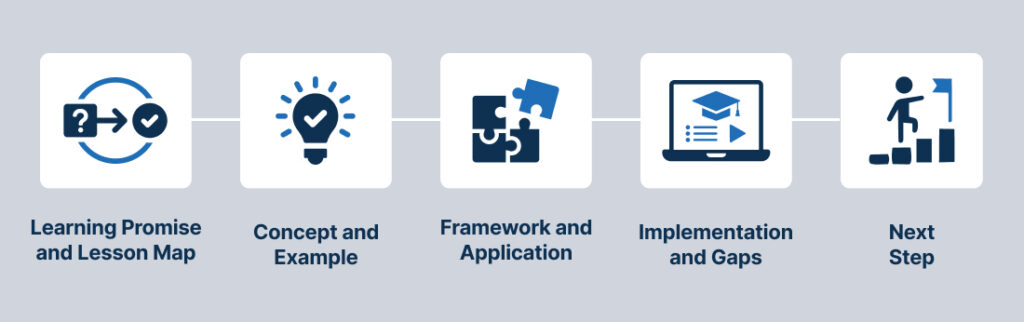
Slide Cluster 1: Learning Promise and Lesson Map
Show the path before you teach.
A mini-course needs more structure than a standard training because attendees expect progression. Tell them what each lesson will help them understand or do.
Slide Cluster 2: Lesson One — Concept and Example
Start with the core idea.
Do not overload the first lesson. Give the audience one concept, one example, and one reason it matters.
Slide Cluster 3: Lesson Two — Framework and Application
Move from understanding to action.
This section should help the audience apply the concept to their own situation. A short worksheet or decision prompt works well here.
Slide Cluster 4: Lesson Three — Implementation and Gaps
Show what real execution requires.
This is where the webinar can naturally lead to a course, program, service, or deeper training. The point is not “you cannot do this alone.” The point is “here is where implementation gets more specific.”
Slide Cluster 5: Next Step
Give attendees a useful action.
That might be joining a program, watching a replay, downloading a worksheet, attending the next class, or booking a call.
Trap: Teaching so much that the audience feels done.
Pro-tip: End each lesson with a decision checkpoint instead of a recap. For example: “Which part of this workflow would slow you down if you tried it this week?”
6. Product Launch Webinar Example
Best for: new products, feature releases, course cohorts, service launches, and major campaign announcements.
A launch webinar should not just announce what is new. It should help the right people decide whether the new thing matters to them.
Slide Cluster 1: What Changed and Why Now
Open with the change.
Do not start with a long company story. Attendees need to know why this launch is relevant today.
Slide Cluster 2: Who It Is For
Name the audience clearly.
A launch gets sharper when it excludes. If everyone is supposedly a fit, no one feels directly addressed.
Slide Cluster 3: Walkthrough or Preview
Show the new thing in context.
For software, this may be a live workflow. For a course, it may be the curriculum and learning path. For a service, it may be the process and fit criteria.
Slide Cluster 4: Real Urgency or Timing
Use urgency only when it is true.
A cohort date, launch window, limited review capacity, or live-only bonus can be legitimate. Fake scarcity weakens trust and should be avoided.
Slide Cluster 5: Launch CTA and Q&A
Make the next action obvious.
That could mean registering, applying, starting a trial, joining a cohort, booking a call, or reviewing a setup page.
Trap: Making the webinar a celebration instead of a decision tool.
Pro-tip: Add a “who should wait” slide. It reduces pressure and makes the launch recommendation feel more useful.
A 45- to 60-Minute Webinar Timing Breakdown
Use this timing map as a starting point. Adjust based on the format, offer complexity, and how much live Q&A matters.
| Time | Slide Cluster | What It Should Do |
| 0–3 min | Welcome and promise | Confirm the topic, audience, and outcome. |
| 3–7 min | Agenda and participation | Explain chat, polls, Q&A, handouts, or replay expectations. |
| 7–15 min | Problem framing | Show what is broken and why common fixes fall short. |
| 15–30 min | Teaching, demo, or framework | Deliver the main value without drifting from the promise. |
| 30–38 min | Application or walkthrough | Show an example, worksheet, demo sequence, or decision model. |
| 38–45 min | Offer or next-step bridge | Explain what the audience should do next and why it fits. |
| 45–55 min | Live Q&A | Answer questions that affect action, trust, or implementation. |
| 55–60 min | Recap and CTA | Restate the decision and give the next step. |
For a sales webinar, give more time to problem framing, offer bridge, and objections.
For a SaaS demo, give more time to the workflow walkthrough and stakeholder questions.
For a lead gen training, give more time to diagnosis, application, and the handout.
For a live Q&A, shorten the teaching section and use more time for grouped questions.
What Should a Webinar Slide Deck Include?
A webinar slide deck should include a clear promise, audience fit, problem framing, teaching or demo content, interaction moments, a next-step bridge, Q&A, and follow-up instructions.
The best deck is not the longest one. It is the one where every slide has a job.
Use this simple planning test:
- Does the opening tell the right people to stay?
- Does the problem section create useful tension?
- Does the teaching section clarify the method?
- Does the interaction moment reveal something useful?
- Does the CTA feel connected to the content?
- Does Q&A happen while questions still matter?
- Does the follow-up path continue the webinar instead of restarting the conversation?
If you are turning this plan into a live webinar, this is where platform workflow matters. WebinarJam can support the registration path, live-room presentation, polls, Q&A, handouts, offers, replays, and post-webinar review, but the topic, deck structure, and offer logic still need to be planned first.
FAQ: Webinar Examples and Edge Cases
What if my webinar has low attendance?
Low attendance often starts before the reminder sequence. The topic may be too broad, the promise may not feel urgent, or the confirmation page may not reinforce why attending live matters. Review the webinar title, audience promise, event timing, confirmation page, and reminders before changing the whole format.
What if the Q&A gets awkward or quiet?
Prepare questions before the webinar. Use registration questions, sales objections, support questions, or common beginner concerns. A quiet Q&A does not have to feel awkward if the host says, “Here are the questions people usually ask at this point.”
Can one webinar combine multiple formats?
Yes. Many webinars combine formats. A launch webinar may include a product demo and Q&A. A mini-course may end with a sales offer. A lead gen training may use a worksheet and then invite attendees to a deeper session. Choose one primary job, then let the other formats support it.
When should I not use a sales webinar?
Do not use a sales webinar when the audience is too cold, the offer is simple enough to buy from a short page, or the session promise is purely educational. In those cases, a lead gen training, mini-course, or Q&A may be a better fit.
What if my webinar teaches well but does not lead to action?
The bridge is probably weak. The audience may understand the content but not understand why the next step matters. Add a section that explains the implementation gap: what they can do alone, what usually slows them down, and when extra help or a product makes sense.
Should every webinar include an offer?
No. Customer education, internal training, community sessions, and some lead gen webinars may not need a direct offer. They still need a next step, such as downloading a worksheet, watching a replay, joining another session, booking a call, or applying the lesson.
How do I choose between a lead gen training and a mini-course?
Use a lead gen training when the goal is to diagnose one problem and create interest in the next step. Use a mini-course when the audience needs a more structured learning sequence before they can act.
What if my webinar format does not fit one of these categories?
Use the closest primary job. Ask: “What should attendees believe, understand, or do by the end?” If the answer is “buy,” use the sales webinar structure. If it is “understand the product,” use the demo structure. If it is “trust the expert,” use the Q&A or mini-course structure.
How long should a sales webinar be?
A sales webinar should be long enough to teach the problem, explain the method, present the offer, and answer objections without padding. A 45- to 60-minute structure is a useful starting point, but complex offers may need more context.