


Recording a webinar is not the hard part. Clicking record takes about three seconds.
The hard part is creating a replay that holds up when someone watches it alone, without live chat, without group energy, without the ability to ask a question in the moment — and still moves them toward a decision.
Most webinar hosts treat the recording as an afterthought. They turn it on before the session, more or less forget about it during, and send a generic “here’s the replay” email afterward. Then they’re surprised when replay views are decent but conversions are flat.
This guide covers the full process: setup, live delivery, editing, sharing, follow-up, and measurement. Not because each step is complicated, but because skipping any one of them is usually where replay performance falls apart.
Quick-Start Checklist: How to Record a Webinar in 6 Steps
Before you promote the event, confirm these six things:
- Recording and replay access are enabled in your platform.
- Microphone, camera, internet, and slide readability have been tested.
- Headphones are ready; unnecessary apps and tabs are closed.
- A moderator is assigned for chat, Q&A, and timestamp notes.
- Replay settings are configured: access, expiration, controls, viewer questions.
- Follow-up email and replay CTA are drafted before the live session starts.
In WebinarJam, replay recordings are generated after live sessions and can be shared automatically through post-webinar notification emails or manually with a replay link. There’s usually some processing time between the end of the broadcast and when the replay becomes available.
The Best Way to Record a Webinar Depends on Your Setup
There is no single best method. The right choice depends on the goal, the platform, and how the replay will actually be used.
Platform-native recording is the right starting point for most live webinars. Audio, video, slides, and chat are captured together. Replay links and access controls are built in. This is the default for sales webinars, product demos, training sessions, and coaching calls.
Local backup recording — running a second capture on your own machine — is worth adding for high-stakes sessions. It protects the recording if the platform has an issue and gives you a clean file for editing or repurposing. Check your platform’s current documentation to understand exactly what gets captured locally and where files are stored.
External screen recorders like OBS or Riverside give more control over bitrate and output format. Useful for SaaS demos, internal training, and situations where the file needs to live outside the webinar platform.
Cloud replay only works for teams that share recordings via link and don’t need a downloadable file. Simple to configure, easy to control with expiration and permissions.
In WebinarJam, hosts can enable replay access, configure replay contents and controls, set page expiration, show replay chat, and allow replay viewers to submit questions.
Choose the Replay Format Based on Your Webinar Goal
| Webinar goal | Better replay choice | Why it works |
| Live sales presentation | Replica or lightly edited replay | Keeps offer timing, chat energy, and Q&A context intact |
| Product demo | Edited replay or custom video | Removes setup delays; focuses on the buyer’s decision process |
| Training session | Full replay with resources | Lets viewers revisit teaching and implementation steps |
| Coaching or consulting | Replay with follow-up CTA | Gives prospects time to review the framework before booking |
| Internal enablement | Downloaded MP4 or private replay page | Easier for training teams and delivery review |
One thing most hosts get wrong: keeping the live feel when it doesn’t actually help the viewer. If the first five minutes of your recording is housekeeping, waiting for people to join, or audio checks — that’s the first thing to cut before you send the replay link.
How to Record a Webinar: The Full Workflow
- Choose your platform and enable recording.
- Confirm video, audio, slides, and internet stability before going live.
- Record the live session while presenting clearly and managing Q&A.
- Review the recording after the session ends.
- Edit only what genuinely improves the replay experience.
- Share the replay through follow-up emails or a dedicated replay page.
- Track replay engagement and apply what you learn to the next event.
The mechanics are simple. The rest of this guide is about the decisions that determine whether the recording actually becomes useful.
Phase 1: Set Up the Recording Before the Webinar
Replay quality is largely determined before the session starts. Rushed setup shows.
Enable recording and replay access before you promote
This sounds obvious, but it gets skipped. Before you send a single registration email, confirm how your platform handles recording, replay access, downloads, and expiration.
In WebinarJam, replay access must be enabled in the webinar configuration. Options include a replica replay, a custom video, or a redirect to an external URL. Hosts can also configure replay controls, replay chat, page expiration, and viewer questions.
There’s a distinction worth naming clearly:
A recording answers: Will we have the video? A replay strategy answers: What should someone do after watching it?
Both need to be set up before the event. One without the other is an incomplete plan.
Test everything — especially audio
Video quality matters. Audio quality matters more.
Replay viewers will tolerate average video if the content is useful. They won’t sit through distorted audio, echo, or long silent gaps — and they won’t tell you why they stopped watching. They’ll just stop.
Before going live, test your microphone with the actual device you’ll use on the day. Use headphones to cut echo. Close unnecessary apps. Check your internet on the same network you’ll use for the session. Confirm your slides are readable on a smaller screen, not just yours.
If you’re running a demo, rehearse the screen share separately. Nothing breaks a SaaS demo replay faster than five minutes of fumbling with windows while the presenter apologizes.
Assign a moderator if chat or Q&A will be active. Prepare offer links, handouts, and polls before you go live. These feel like small things until one is missing mid-session.
Build a backup plan, not just a backup file
Running a local or secondary recording is a sensible habit for high-stakes sessions. But the backup file is only part of it.
The rest:
- Keep a local copy of your slides outside the platform.
- Save offer URLs and resource links somewhere accessible without the live room.
- Have a moderator note timestamps for strong questions and technical issues.
- Keep a simple run-of-show document open during the session.
- Know exactly where the replay link and download options will appear after the event ends.
A backup file protects the recording. A backup plan protects the entire replay experience.
Phase 2: Record the Live Session With Replay Viewers in Mind
Here’s what most hosts miss about replay viewers: they’re a completely different audience.
They’re watching later, probably alone. There’s no chat to read, no host to ask a question, no group energy pushing them toward a decision. Most of the live-room context that made your session feel compelling is simply gone.
That changes what good delivery looks like.
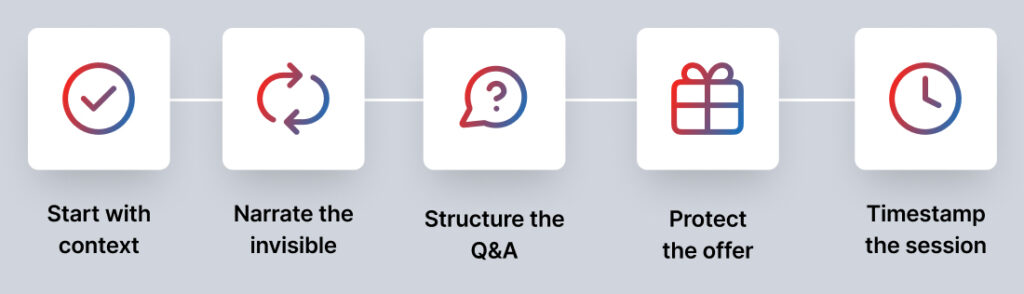
Open with context, not a waiting room
“We’ll give it a minute or two for people to join” is a normal live-room opener. On replay, it’s dead air that makes the recording feel slow before it’s started.
Open instead with a short context frame:
“In this session, we’re covering how to record a webinar, protect replay quality, and follow up with viewers after the live event. If you’re watching the replay, the main sections are setup, live delivery, editing, and follow-up.”
Twenty seconds. Helps both audiences. You can still welcome people as they join — just don’t let the recording begin with minutes of nothing.
Narrate what replay viewers can’t see
Replay viewers may not see every chat message, poll result, or audience reaction the way live attendees did. When something meaningful happens in the room, name it out loud.
Weak: “Great, looks like option B is winning.”
Better: “Most of you are picking option B — which tells me the bigger problem isn’t the recording itself. It’s knowing what to do with it afterward.”
That one shift makes the recording make sense to someone who wasn’t there.
Keep Q&A structured enough to follow on replay
Live Q&A builds trust. Badly managed Q&A makes a replay feel scattered and hard to follow. The fix isn’t to remove it — it’s to organize it.
- Restate the question out loud.
- Answer in one sentence first.
- Add the nuance.
- Connect it back to the main point.
- Move on before the replay loses pace.
A moderator who groups similar questions saves everyone time, especially on product demos and training sessions where the same few questions come up in every session.
Protect the offer moment for replay viewers specifically
If your webinar has a CTA — sales, demo, consultation, enrollment, download — present it in a way that holds up without live context.
The mistake is leaning on urgency that doesn’t exist for replay viewers. If someone hears “click the button right now” and there’s no button, no context, and no valid deadline, the recording feels stale. Urgency that’s already expired reads as manipulation on replay, not as motivation.
Use language that works for both audiences:
“If you’re live, the button is on this page. If you’re watching the replay, use the link in your follow-up email or on the replay page to take the next step.”
Deadlines should be real ones — expiration dates, cohort starts, limited bonuses. If the deadline isn’t real, don’t invent one.
Have someone mark timestamps during the session
Post-production is faster and more accurate when someone tracks key moments in real time.
Ask a moderator to note: where the teaching actually starts, strong examples, poll results worth referencing, the offer transition, major objections raised, technical glitches that need cutting, and questions worth following up on in the email sequence.
This replaces the guesswork of scrubbing through an 80-minute recording trying to remember what happened when.
Worked Example: How to Record a SaaS Demo Webinar
Here’s how the full process plays out for a concrete scenario: a SaaS demo where the goal is moving prospects to a trial or discovery call.
Pre-event setup Enable recording and replay access. Choose “edited replay” as the format — a demo benefits from trimming setup delays and focusing on the product steps. Test audio, video, and the demo environment separately. Prepare a run-of-show with timestamp notes.
Live delivery Open with a clear frame: “In this demo, we’ll show how [product] helps [persona] solve [problem]. Three steps, then time for questions about your specific setup.”
Walk through the demo in 3–4 distinct steps. When objections appear in chat — and they will — say them out loud and answer them on the recording. Mark timestamps for: problem framing, each demo step, objection handling, and the offer transition.
Post-webinar editing Trim the waiting room, audio checks, and setup delays. Keep problem framing, demo steps, objections, and the offer transition. If the live opening was weak, add a short recorded intro: “This replay was recorded from a live session. The first section covers [problem], the middle covers the demo, and the final section covers next steps.”
Sharing the replay In WebinarJam, share the replay through a post-webinar notification email or manually from the dashboard after processing. The replay link and MP4 download option both appear there once the recording is ready.
Follow-up by segment
| Segment | What they need | Message angle |
| Registered, didn’t attend | Reason to watch | “Here’s what you missed and where to start” |
| Attended live | Reinforcement | “Here’s the replay, resources, and next step” |
| Watched replay | Decision support | “Here are answers to common questions” |
| Asked a question | Personal relevance | “This section addresses your question directly” |
| Clicked offer | Clarity | “Here’s what happens when you take the next step” |
| Didn’t click offer | Education | “Here’s the problem recap and a useful resource” |
The replay doesn’t close deals on its own. The follow-up is what connects the recording to the decision.
Phase 3: Edit, Share, and Repurpose
Post-production should make the replay easier to watch and easier to act on. It shouldn’t turn a live webinar into a polished video course — unless that’s the specific goal.
What to cut
Dead air, audio checks, screen-sharing fumbles, waiting room chatter, duplicate explanations, off-topic Q&A, broken links, outdated instructions, and offer references that only made sense in the live room.
For most webinars, a focused editing pass should be limited to clarity fixes rather than frame-by-frame polishing.
What to keep
Anything that helps a viewer understand, trust, or decide: useful audience questions, objection handling, before-and-after examples, product walkthrough moments, poll results that shaped the session, the exact language used around the offer.
A replay doesn’t need to be perfect. It needs to be clear — and the next step needs to be obvious.
Add a replay-specific intro for high-value sessions
For important webinars, a short recorded intro helps:
“This replay was recorded from a live session. The first section covers [topic], the middle covers [topic], and the final section covers [topic]. Some live chat references have been edited for clarity.”
Particularly useful when the live event had time-sensitive offers, heavy audience participation, or Q&A that won’t make sense without context.
Add captions, transcripts, and chapters
Captions improve accessibility and watch-through rates. Transcripts create a searchable text asset that can be repurposed. If your platform supports chapters, use them — longer webinars become much easier to navigate when viewers can jump to the section they actually need.
Repurpose the recording into multiple assets
A single 60-minute webinar can become:
- A blog post or resource page from the transcript, capturing long-tail search traffic
- Short clips for email or social that drive back to the replay or offer
- A FAQ page built from the Q&A section
- An email nurture sequence using the webinar structure as the backbone
- A gated lead magnet on a landing page to capture new registrants who weren’t at the live session
This is how the time investment in a well-run webinar pays off beyond the original live audience.
How to Share a Webinar Replay That Drives Action
A replay email that says “here’s the recording” is a missed opportunity every time.
In WebinarJam, replay recordings can be shared automatically through a post-webinar notification email or manually with a link from the webinar dashboard. The replay link and MP4 download option appear after the recording has processed.

Use the email to frame the value and the next step:
Subject: Replay: How to record a webinar that supports follow-up
Here’s the replay from today’s session. If you missed the live event, start with the setup section first, then watch the follow-up section before you write your replay email.
The most useful takeaway: recording settings matter less than most people think. The replay CTA and follow-up plan are what determine whether the recording does anything useful after the event.
[Watch the Replay]
For more on the email side of this, connect this to a dedicated webinar follow-up email guide.
Build the Follow-Up Plan Before the Webinar Ends
Follow-up works better when it’s planned before the live session. If you wait until after the webinar to decide what to send, the message usually becomes generic — one email, everyone, same subject line, same link.
When you have behavioral data, segment. The table in the SaaS demo example above applies to most webinar types. The principle is consistent: different viewing behavior signals different decision stages, and different stages need different messages.
Measure the Replay as Part of the Conversion Funnel
Don’t judge a recording by whether it exists. Judge it by whether it helps the next step happen.
After each event, review: how many registrants missed the live session, how many replay links were opened, which follow-up emails generated clicks, whether replay viewers submitted questions, whether replay viewers took the CTA, which sections caused repeated confusion or objections, and what to change before the next session.
WebinarJam’s post-event review covers analytics, logs, and replays — which makes the recording part of an improvement loop rather than just an archive.
If people register but don’t attend, the issue is usually timing, reminders, or topic urgency. If they attend but don’t act, it’s usually offer fit, teaching structure, or follow-up. If replay views are high but action is low, the CTA probably isn’t clear enough for someone watching without the live context.
Each of those is a different problem with a different fix. Replay analysis belongs in the same conversation as overall webinar funnel health, not in a separate folder after the event.
Common Recording Mistakes That Kill Replays
Treating the recording as an afterthought. Decide before the webinar how the replay will be used. A replay for missed attendees needs different framing than one for internal training or a sales follow-up sequence.
A messy opening. Waiting rooms, audio checks, and vague housekeeping all weaken the replay. Start with context.
Ignoring audio quality. Viewers tolerate average video. They won’t finish a replay with bad audio.
Unstructured Q&A. Restate questions out loud. Group similar topics. Keep answers connected to the main point of the session.
One follow-up email for everyone. Missed registrants, live attendees, replay viewers, and offer clickers are at different stages. Treating them the same wastes every segment except one.
Manufactured urgency. Fake deadlines work once, maybe. On replay, they undermine everything that came before them — including the teaching.
Where WebinarJam Fits the Recording Process
WebinarJam is built for live webinar setups where the recording is one piece of a larger system: registration, reminders, live presentation, audience interaction, replay access, and post-event review.
For the recording and replay side specifically, the platform lets hosts enable replay access, choose replay contents, configure controls, show replay chat, set expiration, and allow replay viewers to submit questions. Replay links can be shared automatically through post-webinar notifications or manually from the dashboard.
It’s the right fit when you’re running a live training, demo, workshop, launch, or sales presentation — and you want registration, live delivery, replay access, and follow-up connected in one system rather than stitched together across different tools.
If you only need to capture a private training session or internal meeting, a simple screen recorder is probably enough. A live webinar platform makes more sense when the audience experience — before, during, and after the session — all matters to the outcome.
FAQ
Does WebinarJam automatically record webinars?
WebinarJam generates replay recordings after live sessions. Hosts should enable session recording and replay settings before the webinar to ensure everything is ready. Replay access can be configured for registrants after the event.
How do I share a webinar replay link?
In WebinarJam, share the replay automatically through a post-webinar notification email or manually by copying the replay link from the webinar dashboard. The replay link and download option appear after the recording has processed.
What is the best way to record a webinar?
Enable recording before the session, test audio and video, run the live session with replay viewers in mind, then edit, share, and follow up afterward. The quality of the replay is shaped largely by decisions made before the event starts.
Should I edit my webinar recording before sharing it?
Yes, usually — but lightly. Trim dead air, technical delays, and housekeeping. Keep the teaching, examples, objections, and Q&A. Those are often the moments that help replay viewers make a decision.
How long should a webinar replay be available?
Match availability to the goal. Training replays can stay available longer for reference. Promotional replays may have a real expiration if the offer, cohort, or deadline is genuinely time-sensitive.
Can a webinar replay help with conversions?
Yes, when paired with a clear CTA, relevant follow-up, and a replay experience that works without live context. The recording alone doesn’t drive conversions — audience fit, offer clarity, teaching quality, and follow-up all contribute.
Conclusion
Recording a webinar is the easy part.
What happens before, during, and after the recording is what determines whether the replay becomes a useful asset or just another file sitting in a dashboard.
The short version: plan the replay before you promote the event. Record the live session with replay viewers in mind — not just live attendees. Edit for clarity rather than perfection. Share the replay with context and a clear next step. Segment your follow-up based on what each group of viewers actually did. And repurpose the recording into assets that keep working after the follow-up sequence ends.
If your webinar depends on registration, live presentation, audience interaction, replay access, and post-event follow-up staying connected, WebinarJam can support that end to end. The recording is the file. The replay strategy is what gives that file a job.